Querying your cloudtrail logs
Storing audit logs is only the first step in getting more ownership on your security posture. Making sense of them is the second step. By performing ad hoc queries you can figure out if there are misconfigurations, security concerns happening within the query time window, or getting a general understanding of your AWS environment.
This post follows my previous post on Organization trails within AWS. If you not have read it, I recommend pausing here and give that a quick read if you are unfamiliar with Cloudtrail logs. The post describes how to setup your Cloudtrail logs in a single bucket for all your accounts.
Besides the main reason, using cloudtrail for security investigations, often what we found is that misconfigurations within AWS, can increase the AWS Cloudtrail and S3 storage costs significantly. Imagine an application that polls for a secrets every 5–10 seconds from Secrets Manager that no longer exists, or a KMS keys that does not have the right policy attached to it and results in a DENY action. Every API call will result in a Cloudtrail log. This can easily increase your cloud bill with 100$ per month. So it’s worth checking if you ask me!
Setting up Athena
With AWS Athena you can easily query compressed files (like our Cloudtrail gzip files) via SQL. Beauty is, you don’t need to know a lot about SQL or databases in order to get going. It can however be very handy, considering your queries can become expensive if you try to query a bucket that has a TB of compressed files and no indexing has been applied. With the examples in this post I tried to make the query as optimized as possible so it will only scan the least amount of data possible.
Let’s start with creating a database to use for our Cloudtrail logs. You can do that with the following command.
CREATE DATABASE IF NOT EXISTS cloudtrail_logs
After you have enter this in the query input field, you can click on run. If this runs successful you will have a new database under Database.
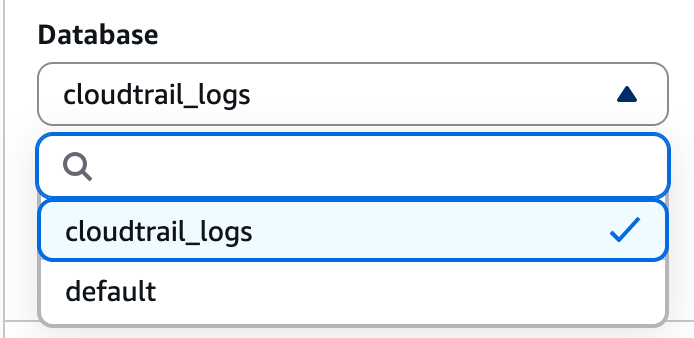
We have a dedicated database now where we can store and query the metadata of our Cloudtrail logs. See this as a logical namespace for organizing your tables that we will create next. You will see that it’s overal good practice when we get to the query section to seperate projects in a dedicated database to keep things organized and separated. Would not be handy to have our WAF logs in the same database as our Cloudtrail logs. In a bigger enterprise setting you can also customize your access policies to these databases, to allow only the security team accessing these logs and not the marketing department for example.
The next thing we need is a table, which will point Athena to the right S3 bucket and describes the structure of the logs. For this post we need just one table. Let’s create the table with the following query.
CREATE EXTERNAL TABLE cloudtrail_logs.organization_trail (
      eventversion STRING,
      useridentity STRUCT<
          type: STRING,
          principalid: STRING,
          arn: STRING,
          accountid: STRING,
          invokedby: STRING,
          accesskeyid: STRING,
          userName: STRING,
          sessioncontext: STRUCT<
              attributes: STRUCT<
                  mfaauthenticated: STRING,
                  creationdate: STRING>,
              sessionissuer: STRUCT<
                  type: STRING,
                  principalId: STRING,
                  arn: STRING,
                  accountId: STRING,
                  userName: STRING>>>,
      eventtime STRING,
      eventsource STRING,
      eventname STRING,
      awsregion STRING,
      sourceipaddress STRING,
      useragent STRING,
      errorcode STRING,
      errormessage STRING,
      requestparameters STRING,
      responseelements STRING,
      additionaleventdata STRING,
      requestid STRING,
      eventid STRING,
      resources ARRAY<STRUCT<
          arn: STRING,
          accountid: STRING,
          type: STRING>>,
      eventtype STRING,
      apiversion STRING,
      readonly STRING,
      recipientaccountid STRING,
      serviceeventdetails STRING,
      sharedeventid STRING,
      vpcendpointid STRING
  )
  COMMENT 'CloudTrail organization trail with partition projection'
  PARTITIONED BY (
     account_id STRING,
     aws_region STRING,
     year STRING,
     month STRING,
     day STRING
  )
  ROW FORMAT SERDE 'org.apache.hive.hcatalog.data.JsonSerDe'
  STORED AS INPUTFORMAT 'com.amazon.emr.cloudtrail.CloudTrailInputFormat'
  OUTPUTFORMAT 'org.apache.hadoop.hive.ql.io.HiveIgnoreKeyTextOutputFormat'
  LOCATION 's3://<<BUCKET_NAME>>/AWSLogs/<<ORGANIZATION_OU>>/'
  TBLPROPERTIES (
      'projection.enabled'='true',

      'projection.account_id.type'='enum',
      'projection.account_id.values'='<<ACCOUNT_ID>>',

      'projection.aws_region.type'='enum',
      'projection.aws_region.values'='eu-west-1,us-east-1,us-west-2',

      'projection.year.type'='integer',
      'projection.year.range'='2020,2030',
      'projection.year.digits'='4',

      'projection.month.type'='integer',
      'projection.month.range'='01,12',
      'projection.month.digits'='2',

      'projection.day.type'='integer',
      'projection.day.range'='01,31',
      'projection.day.digits'='2',

      'storage.location.template'='s3://<<BUCKET_NAME>>/AWSLogs/<<ORGANIZATION_OU_ID>>/${account_id}/CloudTrail/${aws_region}/${year}/${month}/${day}'
  );
This maybe looks confusing to some, so let’s walk through it step by step.
CREATE EXTERNAL TABLE means that the data lives and stays externally. For us this is in that S3 bucket that we created before. If we would drop the table it would not delete the data. We create a table named organization_trails in that cloudtrail_logs database.
We then describe the data structure of the logs, tell Athena what is a string, what is a struct (map, dictionary, etc). Cloudtrail logs have a structured format that all AWS services adhere to. So every service creates audit logs in the same format. Which is perfect for querying actions across different services.
Under the hood we are creating a Glue Database (another AWS services), the COMMENT line describes what the table is used for and will show up if you navigate to the Glue service in AWS under description.
Now we have come to the cost saving part. Partitioning the data in the S3 bucket, or rather creating a lookup table for the file structure of S3. What this PARTITIONED BY block does is creating quick look up table with those colums and puts the correct file path of the S3 bucket accordingly. So if you are interested in only December 26 Athena will only scan that folder instead of the entire bucket for every query.

To bring this powerfull feature home in terms of our understanding, when you run the following query:
SELECT * FROM organization_trail
WHERE account_id = '123456789' AND year = '2025' AND month = '12' AND day = '31'
Athena looks up the partition in Glue: “account_id=123456789, year=2025, month=12, day=31”
Glue returns: s3://bucket/…/123456789/Cloudtrail/eu-west-1/2024/12/25
Athena reads **only **in that folder
Scans those files for any additional WHERE conditions.
Cool right? We will do even more funky in a second.
After the PARTITIONED BY section, we describe the data format. SERDE tells Athena to handle JSON data. CloudtrailInputFormat is AWS’s special format that handles Cloudtrail’s gzipped JSON files and extracts records from the Records array that is present in every log file. Lastly in case we wanted to write the data somewhere we would write it in apache.hadoop format which for now is not really relevant because we are only reading from the table.
The LOCATION as you can see clearly in the value points to the S3 bucket you want to search in with Athena. For us that is the Cloudtrail organization bucket. The folder structure in that bucket has the folder structure of: AWSLogs/OrganizationOU/ and is the base path for where the log files live.
So now the funky part in Athena. With the TBLPROPERTIES we don’t need these Glue Lookup tables anymore. We can calculate the values of the path from the query (e.g. year=2025) directly into Athena itself. This is a powerfull feature if you know the structure of your data very good and doesn’t change that often, which is our case in terms of Cloudtrail logs (account ids, regions, dates). We describe the data we know, so the calculation can be done from the query itself. To give an example here: projection.account_id.values is a comma separated list of all your accounts you want to focus on. Only those accounts will now be searchable. If an account id is not in that list and you try to query logs for that account it won’t show up. In case you have a new account and you want to add this to the projection values you can do that with the following SQL command:
ALTER TABLE organization_trail SET TBLPROPERTIES ('projection.account_id.values'='1234567890,1111111111,2222222222')
At last then you have the Storage location template which is exactly the same as that look up table in Glue, but now you tell Athena how to do it based on the query which folder to scan in.
Pffeew! That was a lot! Can we finally query the logs now? Yes we can. After you pressed run on the previous command and it ran succesfully, you can execute the following query to see if everything is working as expected.
SELECT eventtime, eventname, useridentity.accountid, awsregion
FROM cloudtrail_logs.organization_trail
ORDER BY eventtime DESC
LIMIT 100
Here we just perform a basic query to get the last 100 logs we have in S3. If you have results, we can move on to finally get some insights in what is happening in our AWS environment!
From query to insights
So for this section I would like to give you some starting queries that you can then adjust to get the insights you need. It’s really hard to tell you, this is the query for you. As with everything in IT, it depends on your situation and AWS environment. However there are some things you should check once you got this far. Let’s show some examples.
Note: The queries are always presented with year, month and day. If you want to query for an entire month just obmit the AND day = ‘31’ part of the query.
Most active users
To find out who your most active users are you can run the following query. If one user is doing a lot, it might be good to review that user and its permissions.
SELECT account_id,
         useridentity.arn as useridentity_arn,
         COUNT(*) as total_events,
         COUNT(DISTINCT eventname) as distinct_event_types
  FROM cloudtrail_logs.organization_trail
  WHERE year = '2025'
    AND month = '12'
    AND day = '31'
  GROUP BY account_id, useridentity.arn
  ORDER BY total_events DESC
  LIMIT 50;
Misconfigurations / failed actions
Often a money saver for AWS API calls in your environment. This is for the example I gave earlier, those missing permissions that are being run every x seconds/minutes by an application. It could also show a malicious actor that is enumerating in your AWS environment.
SELECT eventtime,
         account_id,
         useridentity.arn as useridentity_arn,
         eventname,
         eventsource,
         errorcode,
         errormessage,
         sourceipaddress,
         aws_region,
         requestparameters
  FROM cloudtrail_logs.organization_trail
  WHERE year = '2025'
    AND month = '12'
    AND day = '31'
    AND errorcode IS NOT NULL
  ORDER BY eventtime DESC
  LIMIT 100;
if you want a count of the failed actions per user you can use the following query.
SELECT useridentity.arn as useridentity_arn,
        account_id,
        errorcode,
        COUNT(*) as denial_count
FROM cloudtrail_logs.organization_trail
WHERE year = '2025'
AND month = '12'
AND day = '31'
AND errorcode IS NOT NULL
GROUP BY useridentity.arn, account_id, errorcode
ORDER BY denial_count DESC
LIMIT 50;
Failed logins
To see if someone is trying to get in, or you have a clumpsy developer you can check for failed logins in the following way:
SELECT eventtime,
        useridentity.principalid,
        sourceipaddress,
        errormessage,
        useragent
FROM cloudtrail_logs.organization_trail
WHERE year = '2025'
    AND month = '12'
    AND day = '31'
    AND eventname = 'ConsoleLogin'
    AND errorcode = 'Failed authentication'
ORDER BY eventtime DESC;
Root account usage
This is actually one of the first queries that should be run, as usage of the Root user is not according to best practice, and should only be used in a very small sample of use cases. AWS even now has ways to remove the Root user all together for member accounts in your AWS organization, because it’s so powerfull. So if you see activity for this user in any account, investigate further!
SELECT eventtime,
    account_id,
    eventname,
    eventsource,
    awsregion,
    sourceipaddress,
    useragent,
    errorcode,
    errormessage,
    requestparameters,
    responseelements
FROM cloudtrail_logs.organization_trail
WHERE year = '2025'
AND month = '12'
AND day = '31'
AND useridentity.type = 'Root'
ORDER BY eventtime DESC;
Testing blocked actions by implementing Service Control Policies
Service Control Policies are a powerfull way to control which actions can and cannot be performed within your AWS environment. However you want to test it properly before deploying them in your production account. The following query can help detect which actions are blocked by an SCP.
SELECT eventtime,
    account_id,
    eventname,
    eventsource,
    awsregion,
    sourceipaddress,
    useragent,
    errorcode,
    errormessage,
    requestparameters,
    responseelements
FROM cloudtrail_logs.organization_trail
WHERE year = '2025'
AND month = '12'
AND day = '31'
AND account_id = '<<ACCOUNT_ID>>'
AND errormessage LIKE '%with an explicit deny in a service control policy%'
limit 100
Conclusion
I hope this gave you a good impression on how powerfull this ad hoc investigation can be. Considering the way we configured Athena to query the Cloudtrail logs in S3, it’s a cost effective way to do some digging in what is actually going on in your AWS environment.
Couple of extra tips for maybe those who want more examples, or specific use cases:
Use source category in your WHERE statement to filter on specific services;
Use the
readOnlyflag to filter read from write actions (very powerfull one);Turn the queries around, by adding a dedicated user arn in the WHERE statement to see which actions are performed during a specific time window by that user;
Give the
CREATE EXTERNAL TABLEcommand to an AI model, and ask it to write you a SQL query for you. I’ve discovered they are very good at this once they have the context on your database and table setup within Athena. This can really speed up your investigation efforts;
As always, hope you learned some new things and saw the possibilities of Cloudtrail logs. Stay secure!